Getting started with Rich Text

Enabling the Rich Text

  • Select the desired content type from the Content model tab.
  • Create a new field by clicking Add field and select Rich Text as the field type.
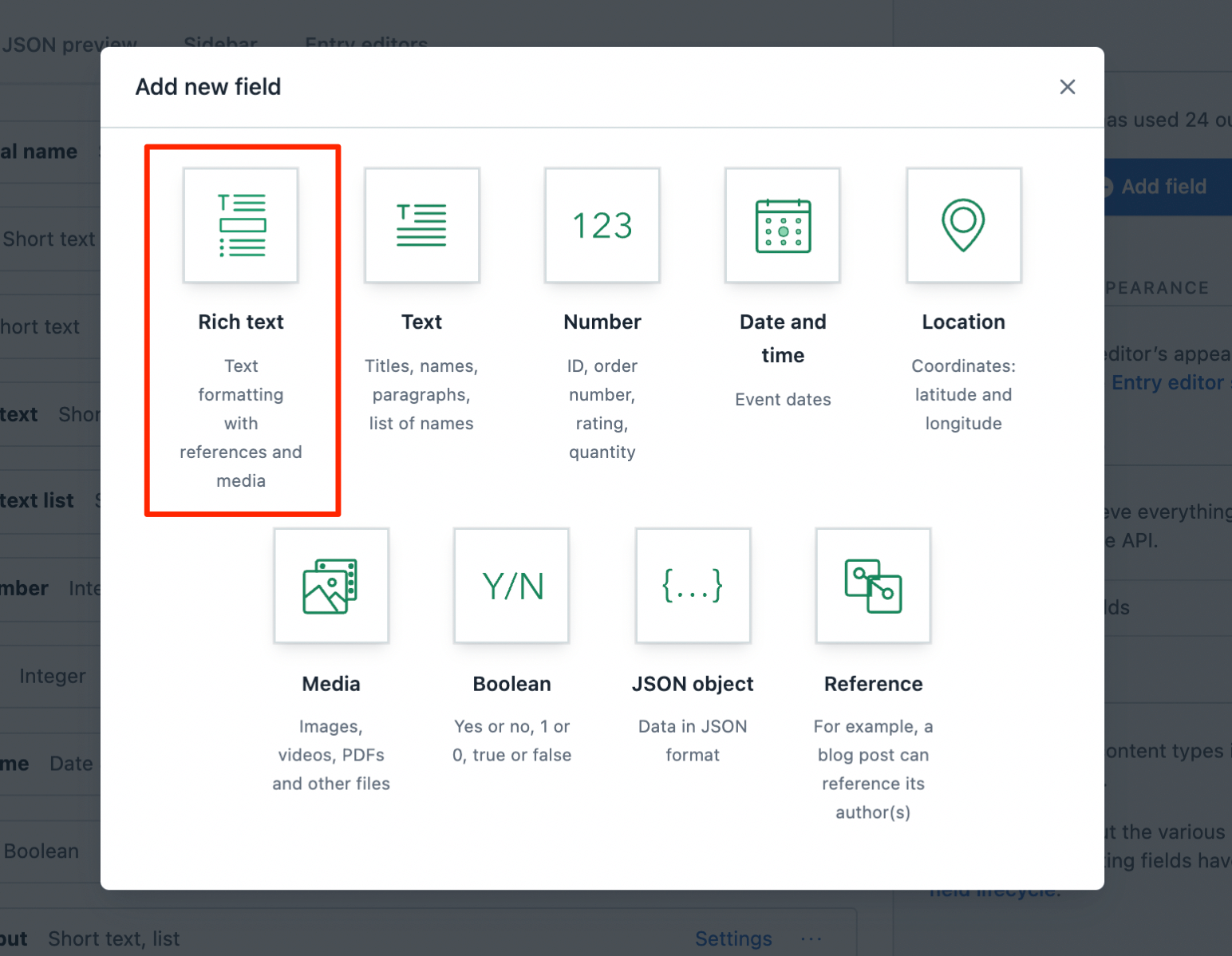
Add the new field type from the content modeling screen

Customize the formatting options

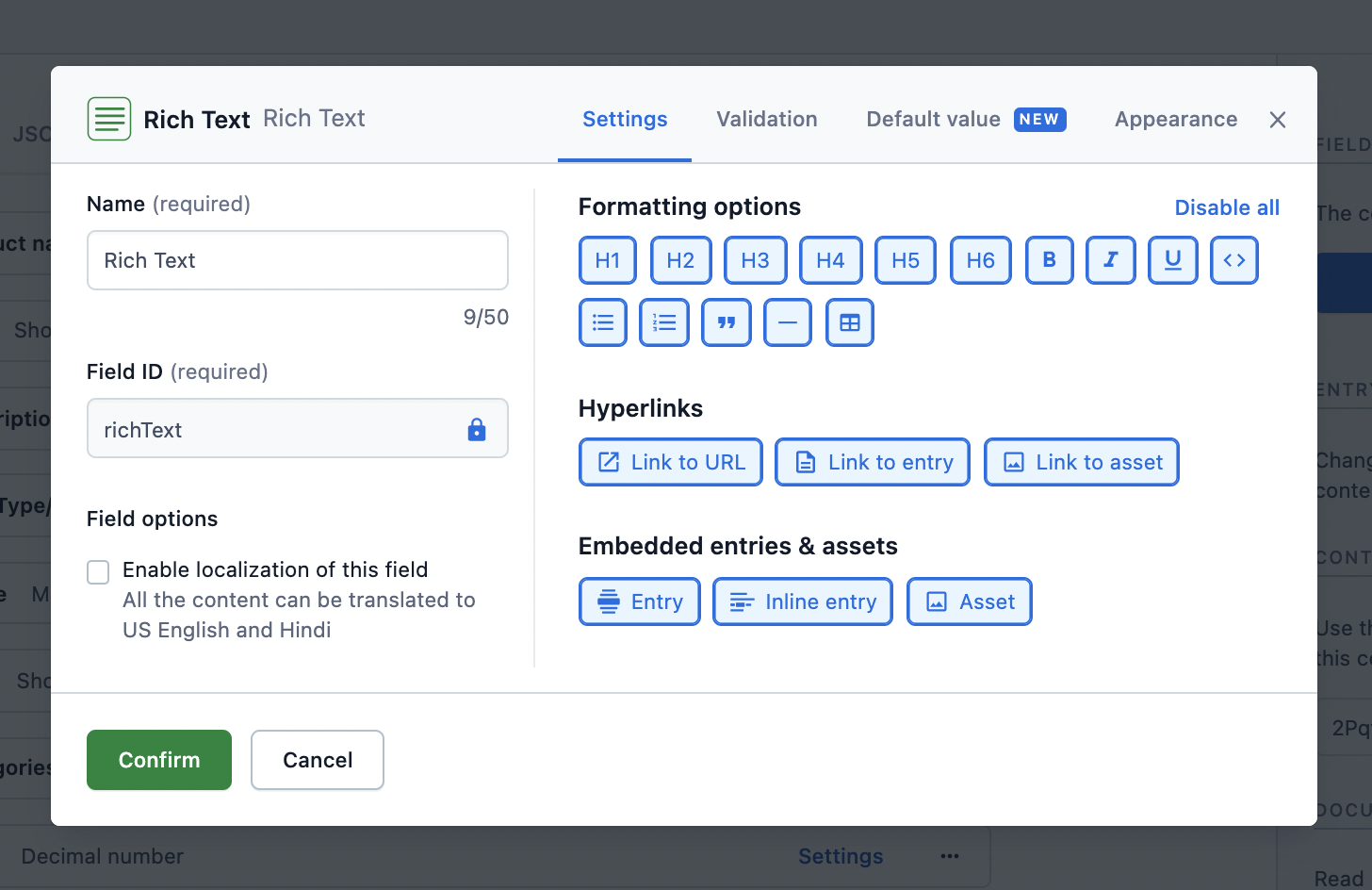
Customization assists in selecting relevant options for the authors in the toolbar while using the Rich Text editor. It can be done with an API call or on the web app.

Customization with an API call

A content type using Rich Text can be customized by making a Content Management API (CMA) call.

For example, following is the API call to only allow paragraphs and specific formatting in them:

1{
2 "id": "YOUR_CONTENT_TYPE_ID",
3 "name": "Rich Text Field",
4 "type": "RichText",
5 "validations": [
6 {
7 "enabledNodeTypes": ["paragraph", "text"],
8 "message": "Please choose a valid node type (should be a paragraph or text)."
9 },
10 {
11 "enabledMarks": ["bold", "italic"],
12 "message": "Please remove any extraneous document markup - only bold and italics are supported."
13 }
14 ]
15}

Similarly, to limit the type of content types that an author could hyperlink to:

1{
2 "id": "YOUR_CONTENT_TYPE_ID",
3 "name": "Rich Text Field",
4 "type": "RichText",
5 "validations": [
6 {
7 "enabledNodeTypes": ["paragraph", "text", "entry-hyperlink"],
8 "message": "Please choose a valid node type (should be a paragraph, hyperlink or text)."
9 },
10 {
11 "nodes": {
12 "entry-hyperlink": [
13 {
14 "linkContentType": ["page"],
15 "message": "You can only hyperlink to Pages."
16 }
17 ]
18 }
19 }
20 ]
21}

Refer to the CMA reference to learn more about the other available validation options.

Customization on web app

To customize the field on the web app:

  • Select the desired content type from the Content model tab.
  • Edit the Rich Text field’s Settings and select the relevant formatting options. Rich Text CDA UI Validations
Render the response in HTML

The content added to the Rich Text field can be consumed from the API response and rendered further in the desired application.

Rendering the API response (a JSON object) is not easy and requires effort to be converted to HTML. Hence, helper functions are created that allow to:

  • Render all the contents of a JSON response to HTML.
  • Apply a custom rendering function to an embedded entry.
  • Apply a custom rendering function to a default node, like a heading or a link, thereby applying personalized style and logic to the markup of an application.

Use-cases around rendering the API response

Add custom CSS classes to HTML elements

Following is an example of adding CSS classes to paragraph tags in JavaScript in order to alternate their background color:

1import React from 'react';
2import ReactDOM from 'react-dom';
3
4import { BLOCKS } from '@contentful/rich-text-types';
5import { documentToReactComponents } from '@contentful/rich-text-react-renderer';
6
7const richTextDocument = {
8 nodeType: 'document',
9 data: {},
10 content: [
11 {
12 nodeType: 'paragraph',
13 content: [
14 {
15 nodeType: 'text',
16 marks: [],
17 value: 'I am an odd paragraph.',
18 data: {},
19 },
20 ],
21 data: {},
22 },
23 {
24 nodeType: 'paragraph',
25 content: [
26 {
27 nodeType: 'text',
28 marks: [],
29 value: 'I am even.',
30 data: {},
31 },
32 ],
33 data: {},
34 },
35 ],
36};
37
38const options = {
39 renderNode: {
40 [BLOCKS.PARAGRAPH]: (node, children) => (
41 <p className={paragraphClass(node)}>{children}</p>
42 ),
43 },
44};
45
46function paragraphClass(node) {
47 const className = 'odd';
48 //alternate logic for 'odd' | 'even'
49 return className;
50}
51
52const rootElement = document.getElementById('root');
53ReactDOM.render(
54 documentToReactComponents(richTextDocument, options),
55 rootElement
56);
57// -> <p class='odd'>I am an odd paragraph.</p>
58// -> <p class='even'>I am even.</p>

Following is an example of how to render links to entries:

1import React from 'react';
2import ReactDOM from 'react-dom';
3
4import { INLINES } from '@contentful/rich-text-types';
5import { documentToReactComponents } from '@contentful/rich-text-react-renderer';
6
7const richTextDocument = {
8 nodeType: 'document',
9 data: {},
10 content: [
11 {
12 nodeType: 'paragraph',
13 content: [
14 {
15 nodeType: 'entry-hyperlink',
16 data: {
17 target: {
18 sys: {
19 type: 'Link',
20 linkType: 'Entry',
21 id: '3vNbx1hjcsESSICSu2KuWs',
22 },
23 },
24 },
25 content: [
26 {
27 nodeType: 'text',
28 marks: [],
29 data: {},
30 value: "I'm linking to an entry",
31 },
32 ],
33 },
34 ],
35 data: {},
36 },
37 ],
38};
39
40const options = {
41 renderNode: {
42 [INLINES.ENTRY_HYPERLINK]: (node, children) => {
43 // If you are using contentful.js client library, the referenced entry is resolved
44 // automatically and is available at `node.data.target`.
45 const referencedEntry = getEntryWithId(node.data.target.sys.id);
46
47 return <a href={`/pages/${referencedEntry.fields.slug}`}>{children}</a>;
48 },
49 },
50};
51
52function getEntryWithId(entryId) {
53 const mockEntry = {
54 fields: {
55 slug: 'entry-slug',
56 },
57 };
58
59 return mockEntry;
60}
61
62const rootElement = document.getElementById('root');
63ReactDOM.render(
64 documentToReactComponents(richTextDocument, options),
65 rootElement
66);
67// <a href='/pages/entry-slug'>I'm linking to an entry</a>

Render custom widgets

Following is an example to render a custom widget, such as a Carousel, within your flow of text, in JavaScript:

1import React from 'react';
2import ReactDOM from 'react-dom';
3
4import { BLOCKS } from '@contentful/rich-text-types';
5import { documentToReactComponents } from '@contentful/rich-text-react-renderer';
6
7const richTextDocument = {
8 nodeType: 'document',
9 data: {},
10 content: [
11 {
12 nodeType: 'embedded-entry-block',
13 data: {
14 target: {
15 sys: {
16 type: 'Link',
17 linkType: 'Entry',
18 id: '3vNbx1hjcsESSICSu2KuWs',
19 },
20 },
21 },
22 content: [],
23 },
24 ],
25};
26
27const options = {
28 renderNode: {
29 [BLOCKS.EMBEDDED_ENTRY]: (node) => <CustomCarousel node={node} />,
30 },
31};
32
33function CustomCarousel({ node }) {
34 // Render the Carousel component from your Component Library
35 return <div />;
36}
37
38const rootElement = document.getElementById('root');
39ReactDOM.render(
40 documentToReactComponents(richTextDocument, options),
41 rootElement
42);
43// <CustomCarousel />

Render tables

Table support comes out of the box with all of the renderers plus client libraries. Table nodes are subject to the same rules of Rich Text as other node types.

Table node types include:

  • BLOCKS.TABLE
  • BLOCKS.TABLE_ROW
  • BLOCKS.TABLE_CELL
  • BLOCKS.TABLE_HEADER_CELL

Tables node types don’t include first class <thead />, <tbody /> or <tfoot /> abstractions. You can supply these yourself by extending the renderers as in the the examples below.

Some constraints apply to the way table nodes are structured in the data type. These are enumerated in the the list of container relationships, but in short, a TABLE element must contain only TABLE_ROW children, which must contain only TABLE_CELL or TABLE_HEADER_CELL children, which must render a BLOCKS.PARAGRAPH as its immediate child node (at which point the usual rules for paragraphs apply).

Contentful’s table node types map onto HTML5 abstractions for tabular data. The table below displays the table node types and the corresponding to them HTML elements.

Table node type nameHTML element
TABLE`
---
Germany
##### Rendering tables using React renderer
You may want to structure tables differently, depending on your use case. For example, for some applications, you may want to represent table header rows as a semantic [`<thead />` element](https://developer.mozilla.org/en-US/docs/Web/HTML/Element/thead). This is easy to enforce by following the [customization guide above](#render-tables) in one of [Contentful's renderer library of your choice](https://github.com/contentful/rich-text). For example, using the [React Renderer](https://github.com/contentful/rich-text/tree/master/packages/rich-text-react-renderer), you can supply a custom renderer like:
```jsx
const options = {
renderNode: {
[BLOCKS.TABLE_ROW]: (node, children) => {
if (
children.every((node) => node.nodeType === BLOCKS.TABLE_HEADER_CELL)
) {
// all children are header cells, so we should wrap the row
// with a <thead /> tag
return (
<thead>
<tr>{children}</tr>
</thead>
);
} else {
// not a header row, so we can render an ordinary <tr />
return <tr>{children}</tr>;
}
},
},
};

This would result in markup like:

1| Country |
2| --- |
3| Germany |

Get started with various platforms

The helper functions are available for the following platforms: